

ThinkMarkets Help Centre
Platforms overview
What features and tools are available on the ThinkMarkets ThinkTrader platform?
The ThinkTrader platform offers a range of trading features and tools designed to help clients manage and execute trades efficiently. For detailed information about the platform and its available features, please visit the ThinkTrader platform page.
What is the ThinkMarkets ThinkPortal app and how do I use it to manage my trading account?
The ThinkPortal app allows you to easily manage and fund your ThinkMarkets trading accounts from your mobile device. Through the app, you can access key client services, monitor your accounts, and handle account funding on the go.
To get started, download the ThinkPortal app on your Android or iOS device and log in using your existing ThinkPortal account credentials.
Scan or download the app on Android or iOS devices.

What trading platforms does ThinkMarkets offer?
ThinkMarkets offers three trading platforms: ThinkTrader, MetaTrader 4, and MetaTrader 5.
Click the links above to learn more about each platform's features, supported devices and download options.
Are there any fees for using ThinkTrader, MetaTrader 4, or MetaTrader 5?
There are no download, setup, or subscription fees for using ThinkMarkets trading platforms. However, other fees and charges may apply related to trading activity and account inactivity.
Are ThinkTrader, MetaTrader 4, and MetaTrader 5 available as mobile apps?
Yes, ThinkTrader, MetaTrader 4, and MetaTrader 5 are all available as mobile trading applications for ThinkMarkets clients.
You can download the ThinkTrader app, MetaTrader 4 app, or MetaTrader 5 app directly from the ThinkMarkets website, Google Play Store, or Apple App Store, depending on your device.
Can I have both a ThinkTrader account and a MetaTrader 4 or MetaTrader 5 account with ThinkMarkets?
Yes, you can have multiple trading accounts with ThinkMarkets, including ThinkTrader, MetaTrader 4, and MetaTrader 5 accounts. However, each account type is exclusive to its respective platform.
For example, MetaTrader 4 accounts can only be used on the MetaTrader 4 platform, MetaTrader 5 accounts can only be used on the MetaTrader 5 platform, and ThinkTrader accounts can only be used on the ThinkTrader platform.
What is the Traders' Gym feature on ThinkTrader and how does it help traders?
Traders’ Gym is a tool exclusive to ThinkMarkets that allows traders to test their trading strategies using real historical market data within a simulated trading environment on the ThinkTrader platform.
With access to approximately 4,000 instruments, traders can apply their strategies and observe how trades would have performed during a past timeframe of their choosing. Traders’ Gym is designed to help traders refine and improve their strategies before applying them in real-time trading. It is also available over the weekends when markets such as forex, stocks, and indices are closed.
Traders’ Gym is available to all users with an approved live ThinkTrader account. Once your live account is approved, you can access the feature in both demo mode and live mode within ThinkTrader.
If you only have a demo account, you will need to create and have a live ThinkTrader account approved to access Traders' Gym. Create a live ThinkTrader account today.
What is the server time on ThinkMarkets MetaTrader 4 and MetaTrader 5?
The server time for ThinkMarkets MetaTrader 4 and MetaTrader 5 trading platforms is set to GMT+2. During daylight saving time, the server time changes to GMT+3. This server time setting cannot be changed on the platforms.
Where are the ThinkMarkets trading servers located?
ThinkMarkets trading servers are hosted at Equinix LD4 and LD5 data centres located in London and New York.
For more details about the company’s technology and infrastructure, please visit the Trading Infrastructure page.
Where do price quotes come from on ThinkTrader, MetaTrader 4, and MetaTrader 5?
Live price quotes and market depth information on the ThinkTrader, MetaTrader 4, and MetaTrader 5 platforms are streamed from top-tier liquidity providers. These providers supply real-time pricing data that is delivered directly to the trading platforms.
What happens to my open positions and pending orders if I log out of ThinkTrader?
Logging out of the ThinkTrader platform does not close your open positions. Your trades will remain active until a stop loss, take profit, or margin stop out level is reached, or until you manually close the position.
Existing pending orders, such as limit orders, will also remain active and will be executed automatically if the specified entry price is reached.
What is a Virtual Private Server (VPS) and how does it work with MetaTrader 4 and MetaTrader 5?
A Virtual Private Server (VPS) allows you to stay connected to your MetaTrader 4 or MetaTrader 5 trading account 24/7 through a virtual machine. This enables you to run automated strategies, including Expert Advisors, continuously without interruption.
ThinkMarkets’ preferred VPS provider, ForexVPS, is co-located with its trading server hub. This setup allows for direct cross-connection, helping ensure fast trade execution speeds. The VPS is also quick to set up, with MetaTrader 4 and MetaTrader 5 platforms pre-installed on ForexVPS.
To learn more about VPS services, visit the ThinkMarkets VPS page.
What cash equities live pricing options are available on ThinkTrader in Australia?
ThinkMarkets offers a ‘Live click refresh price data’ service free of charge for Australian cash equities. To view up-to-date share market data without the standard 20-minute delay, you need to manually click ‘Refresh’ on the ‘Trade order’ screen within the ThinkTrader platform.
A ‘Premium live streaming price data’ service is also available. For more details, including pricing, visit the ThinkMarkets cash equities page.
Where access ThinkMarkets ThinkZero prices?
If you have a ThinkMarkets ThinkZero account, you can access ThinkZero prices by selecting the product code with the x suffix when trading forex pairs, gold and silver. For example, use EURUSDx, XAUUSDx or XAGUSDx.
In MetaTrader 4 and MetaTrader 5, ThinkZero pricing is shown through these x-suffix instruments.
To learn more about ThinkZero account benefits, including spreads as low as 0, visit the ThinkMarkets ThinkZero account page.
Which ThinkMarkets platforms support USDT?
USDT is available as a base currency across all supported ThinkMarkets platforms, including ThinkTrader, MetaTrader 4 and MetaTrader 5.
Clients using a ThinkTrader account can also connect their account to TradingView and trade using USDT.
How do I set a trailing stop loss on ThinkTrader?
Traders can set a trailing stop loss on ThinkTrader from the order screen. Open a trade ticket, enable the stop loss, and select Trailing. Enter the trailing stop loss distance in pips, then confirm the order.
To change a trailing stop loss back to a regular stop loss, select Modify positions and change the stop loss type from Trailing to Normal.
Trailing stop losses are not available on Traders Gym.
What is a pre-IPO instrument on ThinkMarkets?
A pre-IPO instrument is a cash-settled CFD on a company's expected market capitalisation at the close of its first official day of trading. ANTH_PRE (Anthropic) and OAI_PRE (OpenAI) let you take a long or short position on that expectation before either company lists on a public stock exchange.
Pre-IPO instruments are only available in certain jurisdictions and may not be available to all clients. Availability is subject to the client’s country of residence and the ThinkMarkets entity they trade with.
How do I trade Anthropic pre-IPO (ANTH_PRE)?
Search for ANTH_PRE in your platform's instrument list and open a position the same way you would trade any other CFD.
How do I trade OpenAI pre-IPO (OAI_PRE)?
Search for OAI_PRE in your platform's instrument list and trade it the same way you would trade any other CFD.
Is pre-IPO trading available 24/7, including weekends?
Yes. Both instruments can be traded around the clock, seven days a week, including weekends, in the same way as our other synthetic and crypto instruments. Once a company lists on the public market, the pre-IPO market will no longer be available.
What happens to my position when the company officially lists?
ANTH_PRE and OAI_PRE close permanently once each company completes its public listing, and the standard listed instrument becomes available. Open positions on the pre-IPO instrument cannot be carried over or migrated to the new listing, so you'll need to close any open position before that happens if you want to trade the standard instrument once it launches.
Which platforms support pre-IPO trading?
Both ANTH_PRE and OAI_PRE are available to trade on ThinkTrader and MT5. They are not currently supported on MT4.
How is the price of ANTH_PRE / OAI_PRE determined?
Since neither company has a public market yet, there's no live exchange feed to price these instruments against. Instead, ANTH_PRE and OAI_PRE are priced as synthetic valuation instruments, reflecting an estimate of the company's private-market valuation rather than a quoted share price. This price is not a prediction or guarantee of what the eventual IPO price will be.
Platform downloads and installation
How do I download MetaTrader 4 or MetaTrader 5 from my ThinkMarkets ThinkPortal account?
To download and install the MetaTrader 4 or MetaTrader 5 trading platforms, log in to your ThinkPortal account and select Download MetaTrader on Desktop to access the installation files.
Please note that ThinkTrader is a web-based and mobile app trading platform and does not require a desktop download. You can access it directly through the ThinkTrader web platform or mobile app.
How do I install the ThinkTrader Web app on a Mac?
To install ThinkTrader Web on a Mac, first log in to your ThinkTrader account via the ThinkTrader Web platform.
Then, click the install option  shown in the browser URL bar for the ThinkTrader Web app.
Select 'Install app' to begin installation. Once installed, you can launch the app from your desktop by clicking the 'ThinkMarkets ThinkTrader Web' icon.
How to install ThinkTrader Web on Windows?
To install ThinkTrader Web on Windows, first log in to your ThinkPortal account via the ThinkPortal login page using your email and password.
Then, click on 'Platforms', select 'ThinkTrader', and choose 'Open in Browser'.

Next, click the install icon  in the browser to install ThinkTrader Web on your PC and confirm by selecting 'Install app' when prompted.
Once installed, you can launch the app from your desktop by clicking the 'ThinkMarkets ThinkTrader Web' icon.
How to download ThinkTrader and MetaTrader mobile apps?
To download ThinkTrader and MetaTrader mobile apps, go to the ThinkMarkets website and open the menu in the top right corner. Select ‘Log in’ and access ThinkPortal using your credentials. Then, open the menu and choose ‘Platforms’ to view available downloads based on your account type. Select ThinkTrader, MetaTrader 4, or MetaTrader 5, then choose either the App Store or Google Play depending on your device. Tap ‘Install’ and log in to the mobile app using the credentials sent to your email.
How do I install the ThinkTrader mobile app on Android or iOS?
To install the ThinkTrader mobile app on your smartphone, follow these steps:
Step 1: Open the Google Play Store on Android devices or the App Store on an iPhone and search for ThinkTrader.
Step 2: Select the ThinkTrader app from the results and tap Install on Android or Get on iOS.
Step 3: Tap Accept in the pop-up window or enter your password if prompted, then wait for the app to download and install on your device.
Step 4: Launch the app and log in using your ThinkTrader account credentials.
How do I install MetaTrader 4 or MetaTrader 5 on a Windows computer?
To install MetaTrader 4 or MetaTrader 5 on a Windows computer, follow these steps:
Step 1: Log in to ThinkPortal and click the Platforms tab on the left side of the dashboard.

Step 2: Select ThinkMarkets MT4 or ThinkMarkets MT5 depending on which platform you want to install. You can also use the direct download links for MT4 for Windows or MT5 for Windows.
Step 3: A setup.exe file will be downloaded to your computer.
Step 4: Open the downloaded setup.exe file and click Next in the installation window to begin the installation process.
Step 5: Once the installation is complete, click Finish and the platform will open automatically.
Please note that after the installation finishes, your browser may automatically open the official MetaTrader website. You can review the information provided there or simply close the window.
Step 6: If the platform does not open automatically, you can start it manually by clicking the MetaTrader 4 or MetaTrader 5 icon on your desktop.
How do I install MetaTrader 4 or MetaTrader 5 on an iPhone?
Installing MetaTrader 4 or MetaTrader 5 on an iPhone is straightforward. Follow these steps to download and start using the platform:
Step 1: Open the Apple App Store and search for MetaTrader 4 or MetaTrader 5.
Step 2: Select the MetaTrader 4 or MetaTrader 5 application from the results and tap Get.
Step 3: Enter your Apple ID password or confirm the download if prompted, then wait for the app to install.
Step 4: Once the installation is complete, open the app by tapping the MetaTrader 4 or MetaTrader 5 icon on your iPhone.
Step 5: Log in to the platform by entering your trading account credentials to authorise access to your account.
How do I install MetaTrader 4 or MetaTrader 5 on an Android device?
To install MetaTrader 4 or MetaTrader 5 on an Android device, follow these steps:
Step 1: Open the Google Play Store and search for MetaTrader 4 or MetaTrader 5.
Step 2: Select the MetaTrader 4 or MetaTrader 5 app from the search results and tap Install.
Step 3: Tap Accept in the pop-up window if prompted and wait for the app to download and install on your device.
Step 4: Once the installation is complete, open the app and log in using your trading account credentials.
How do I install MetaTrader 4 on a Mac?
To install MetaTrader 4 on a Mac for use with your ThinkMarkets trading account, please follow the dedicated MetaTrader 4 Mac installation guide.
The guide provides detailed, step-by-step instructions on how to download and install MetaTrader 4 on macOS, including any required configuration steps. Once installation is complete, you can log in using your ThinkMarkets trading account credentials.
How do I install MetaTrader 4 on Linux?
To install MetaTrader 4 on a Linux operating system for use with your ThinkMarkets trading account, please follow the MetaTrader 4 Linux installation guide.
The guide provides detailed instructions on how to set up MetaTrader 4 on Linux, including any required compatibility tools and configuration steps. Once installation is complete, you can log in using your ThinkMarkets trading account credentials.
How do I install multiple MetaTrader 4 platforms on the same computer?
You can install multiple MetaTrader 4 platforms on the same computer by installing each instance in a separate folder. The process is the same whether you are installing on a desktop computer or a Virtual Private Server (VPS).
Follow these steps:
Step 1: Create a new folder on your desktop. Right-click on your desktop, select New, then Folder, and name the folder MT4 shortcuts.
Step 2: If you already have one ThinkMarkets MT4 platform installed, rename the existing ThinkMarkets MT4 desktop shortcut to the account number it is associated with or another identifying description. Then move it into the MT4 shortcuts folder you created.
Step 3: Download the ThinkMarkets MT4 platform.
Step 4: Start the installation process. When prompted to choose the installation location, select a unique file location for each MT4 installation. Click Browse to open the file explorer and choose where the platform will be installed.
Step 5: In the file explorer window, click Create in the bottom left corner to create a new folder for this installation. Name the folder, click OK, and then click OK again to confirm the location.
Step 6: If you see the message “The new file location already exists”, you can ignore it and continue with the remaining steps of the installation.
Step 7: After the installation is complete, rename the new ThinkMarkets MT4 desktop shortcut and move it into the MT4 shortcuts folder you created earlier.
Repeat the same process for each additional MetaTrader 4 platform you want to install.
Logging in and access
Can I log in to multiple ThinkMarkets trading accounts on the same platform at the same time?
Yes, you can access different trading accounts simultaneously by using different versions of the platform, such as web, desktop, or mobile.
However, it is not possible to log in to multiple ThinkTrader accounts within the same version of the platform. For example, you cannot log in to two different accounts on the ThinkTrader desktop application at the same time.
For MetaTrader 4 and MetaTrader 5, you can install multiple instances of the desktop application and log in to a different account on each one. When installing multiple versions, make sure to change the platform installation folder name for each download.
Can I access my ThinkTrader, MetaTrader 4, or MetaTrader 5 account from different computers?
Yes, you can access your ThinkTrader, MetaTrader 4, or MetaTrader 5 trading accounts from different computers. As long as you have the correct login credentials, you can log in to the platform from any computer.
Please ensure that your connection settings are configured correctly and that your firewall or internet service provider is not blocking the connection to the trading platform.
How do I log in to ThinkPortal and access my ThinkMarkets account?
ThinkPortal is the account administration area for ThinkMarkets clients and demo account holders.
To log in, visit the ThinkPortal login page and enter the email address you used to register with ThinkMarkets, along with your password.
If you have forgotten your password, you can reset it via the ThinkPortal password reset page.
To learn more about accessing ThinkPortal, including via mobile, visit the ThinkPortal platform page.
How to change MetaTrader 4 password?
To change your password on MetaTrader 4 or MetaTrader 5 desktop, open the platform and go to Tools, then Options, and select the Server tab. You can also use the CTRL + O shortcut on Windows. Click the Change button next to the password field and choose either Change master password or Change investor password. Enter your current password, then input and confirm your new password. Click OK to update it instantly.
How do I change my MT4/MT5 account password in ThinkPortal?
• Log in to ThinkPortal.
• Click 'Dashboard' on the left to see a list of all your live and demo accounts.
• Find the required trading account and click 'View' to open the detailed account information.
• Click 'MT4/MT5 Account Settings', then click 'Reset'. A pop-up window will appear.
• Enter your current ThinkPortal account password as verification, then enter your new password in the 'New MT4/MT5 Login Password' field.
• Click 'Update'. Your MT4/MT5 account password will be updated instantly, and you will receive a confirmation email at your registered email address.
• If you need help changing your password, please contact our client support team via phone, email or live chat.
How to reset ThinkPortal account password?
To reset your ThinkPortal account password, go to Forgot password on ThinkPortal page. Enter your registered email address and submit the request. You will receive an email with a password reset link. Open the email, click the reset button, and enter your new password twice in the provided fields. Submit the change to update your password instantly, and a confirmation email will be sent to your registered email address.
How do I log in to my MT4/MT5 account on desktop?
• Open the MT4/MT5 platform from the desktop icon.
• Click the 'File' tab in the top-left corner and select 'Login to Trade Account'. A login window will appear.
• From your account confirmation email from ThinkMarkets, copy your account number and password and paste them into the login window, taking care not to include any blank spaces.
• Select the correct server from the drop-down:
ThinkMarkets-Live for a live account
ThinkMarkets-Demo for a demo account
• Tick the 'Save account information' box to enable automatic login when you switch accounts or reopen the platform.
• Click OK.
If your login is successful, the platform will play a confirmation sound and load the trading interface. The connection indicator in the bottom-right corner will turn green and update continuously, confirming you are connected to the server.
How do I log in to my MT4/MT5 account on web?
• Log in to ThinkPortal and click the 'Platforms' tab on the left. Select either ThinkMarkets MT4 or ThinkMarkets MT5, then click the green 'Open in Browser' button.
• The MT4/MT5 web terminal will open alongside the 'Connect to an account' window. From your account confirmation email from ThinkMarkets, copy your account number and password and paste them into the login window, taking care not to include any blank spaces.
• Tick the 'Save password' box to enable automatic login when you switch accounts or reopen the platform.
• Select the correct server from the drop-down:
ThinkMarkets-Live for a live account
ThinkMarkets-Demo for a demo account
• Click OK.
Your MT4/MT5 web terminal is now ready for trading.
How do I log in to my ThinkTrader account on desktop?
• Open the ThinkTrader platform from the desktop icon.
• Choose Live or Demo account, then enter your registered email and the password you created during sign-up. Tick the 'Save password' box to enable automatic login when you switch accounts or reopen the platform, then click 'Login'.
• Once logged in, you will see a red dot next to your account number in the bottom-left of the platform. Select the account you would like to use from the list.
• Click the 'Logon' button. The dot will turn green, confirming your account is connected and ready for trading.
How do I log in to my ThinkTrader account on web?
Access ThinkTrader web or log in through ThinkPortal:
• Log in to ThinkPortal and click the 'Platforms' tab on the left. Select ThinkTrader, then click the green 'Open in Browser' button.
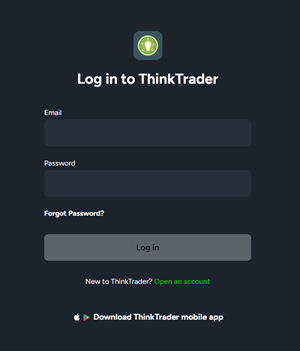
• The ThinkTrader web terminal will open alongside the login window. Choose Live or Demo account, enter your registered email and password, then click 'Log In'.
Your ThinkTrader web terminal is now ready for trading.
Why can't I log in to my MetaTrader 4 account on the desktop platform?
If you can't log in to your MT4 account, check the error message in the bottom-right corner of the platform. The text shown will match one of the three errors below. Follow the corresponding steps to resolve it.
1. Invalid account
This message means the login details entered are incorrect.
• Type your login details manually rather than pasting them, and double-check the account number and password. Make sure there are no extra blank spaces or accidental capital letters.
• Confirm you have selected the correct server from the drop-down: 'ThinkMarkets-Live' for a live account or 'ThinkMarkets-Demo' for a demo account. If the server is not listed, type it in manually.
If your details are correct and the error persists, reset your trading account password via ThinkPortal.
2. No connection
This message means the platform cannot reach the trading server. Try the following:
• Check your internet connection. Make sure you are connected to a stable network.
• Re-enter your login details. Go to 'File' > 'Login to Trade Account', type the details manually, and confirm the correct server is selected (ThinkMarkets-Live or ThinkMarkets-Demo). Type the server name manually if it does not appear.
• Re-scan the servers. Click the 'No connection' message in the bottom-right corner of the platform to open a sub-menu, then select 'Rescan Servers'.
• Check anti-virus or firewall settings. Security software (including the built-in Windows Firewall) can block the platform. Add MT4 to your authorised programs list or temporarily disable the firewall to test.
If the error continues, the issue may be that incoming/outgoing traffic on port 443 is being blocked. Try a different server from the list below:
• Live servers: ThinkMarkets – Live, ThinkMarkets – Live 2, ThinkMarkets – Live 3, ThinkMarkets – Live 4
• Demo server: ThinkMarkets – Demo
If the server does not appear in your drop-down, you can add it manually:
• Click 'File' in the top-left corner and select 'Open an Account'.
• Click '+ Add new broker' and type in the required server name, then proceed.
3. Common error
This message means the platform has not been updated to the latest version.
• To check your current version, click 'Help' in the top-left corner and select 'About'.
If the platform is out of date, uninstall it and reinstall the latest version from ThinkPortal.
If you have followed all the steps above and still cannot log in, please contact our client support team via email, phone or live chat.
Why can't I log in to my MetaTrader 5 account on the desktop platform?
If you cannot log in to your MetaTrader 5 account, check the error message in the ‘Journal’ tab in the bottom section of the platform.

Authorization failed or Invalid account
These errors mean that your login details are incorrect.
• Enter your account number and password manually, ensuring there are no extra spaces or incorrect capitalisation.
• Make sure you have selected the correct server: ThinkMarkets-Live for live accounts or ThinkMarkets-Demo for demo accounts. If the server is not listed, enter it manually.
• If the issue persists, reset your trading account password and try again. ```
If the issue persists, reset your trading account password and try again.
If you still cannot log in after verifying your details and resetting your password, please contact the ThinkMarkets client support team via email, phone, or live chat.
Why can't I log in to my ThinkTrader account?
If you can't log in to your ThinkTrader account, the issue will usually match one of the two errors below. Follow the corresponding steps to resolve it.
1.Invalid or missing password' error
• Double-check that you have entered the correct email and password, and make sure there are no extra blank spaces or accidental capital letters.
If your details are correct but you still cannot log in, click 'Forgotten password' on the login screen and follow the instructions to reset it.
2. Connection error (ThinkTrader desktop app only)
• Windows: Press the ALT key on your keyboard to reveal the menu bar, click 'File', then select 'Clear user data'. Once complete, restart the platform and log in again with your email and password.
• Mac: Uninstall and reinstall the platform from ThinkPortal.
How do I enable two-factor authentication on my ThinkPortal account?
Step 1: Log in to your ThinkPortal account via the ThinkPortal login page.
Step 2: Click on your profile settings in the top right corner.
Step 3: Open the ‘Security’ tab.
Step 4: Download and install the Google Authenticator app on your mobile device.
Step 5: Click the toggle to enable two-factor authentication.
Step 6: Open the Google Authenticator app and scan the QR code or enter the code manually.
Step 7: Enter the one-time security code generated by the app to confirm the connection.
Step 8: Click ‘Activate’ to complete the setup.
How do I log in to ThinkCopy as an existing ThinkMarkets client?
Step 1: Open ThinkPortal and tap ‘Link an account’.
Step 2: Enter your ThinkCopy account number and password.
Step 3: Select ‘Provide signals’ as your account option.
Step 4: Tap your account number to complete the setup and access your account.
How do I reset my ThinkTrader password?
To change your ThinkTrader account password, click “Forgotten password” on the ThinkTrader login screen on Desktop, Mobile, or Web.
• Enter your registered email address and submit the request. ThinkTrader will send a password reset email to your inbox.
• Open the email and click the “Reset password” button. You’ll then be taken to a page where you can enter your new password twice and submit it.
Your ThinkTrader password will be updated instantly, and you’ll receive a confirmation email confirming the password reset. Your ThinkTrader password will be updated instantly, and you’ll receive a confirmation email confirming the password reset.
ThinkTrader mobile guide
How do I add or modify stop loss and take profit orders on the ThinkTrader mobile app?
To add or modify a stop loss or take profit order on an open position in the ThinkTrader mobile app, follow these steps:
• Press Positions
• Select your active position
• Tap Modify Position
• Toggle the sliders to activate stop loss and take profit orders
• Adjust the levels as needed
• You can also use the wheel button to fine-tune the levels
To edit or remove the orders later, simply repeat the same steps and adjust or disable the stop loss or take profit settings.
How do I place and manage pending orders on the ThinkTrader mobile app?
To place and manage pending orders on the ThinkTrader mobile app, first choose the instrument you would like to trade. The default order type is Market, which opens a position at the current market price. You can also choose Limit or Stop orders to enter the market at a predefined price in the future.
• Market opens your position at the current price. For example, if the price is 1.0928, the order will execute immediately at that level.
• Limit allows you to buy below the current price. For example, you could place a buy order at 1.09.
• Stop is used for buying above the current price, such as placing an order at 1.0950.
• You can add stop loss and take profit orders to help manage your trades.
• Market sell orders profit from falling prices and lose when prices rise.
• Sell Limit allows you to sell above the current market price, for example at 1.0960.
• Sell Stop allows you to short sell below the current price, such as at 1.09.
• To execute the order, press the button in the bottom right corner of the screen.
• Pending orders can be found under the Positions section.
• You can modify or close orders from the Positions section as needed.
How do I manage my trading accounts on the ThinkTrader mobile app?
To manage your accounts in the ThinkTrader mobile app, tap the More icon (three dots) at the bottom of the home screen and then select the Account tab. Please note that demo accounts and live accounts have different settings and options.
Demo accounts include the following options:
• Reset account – allows you to restore your starting balance and remove all trade data.
• Message log – displays all the messages you have received.
Live accounts include the following options:
• Manage funds – allows you to deposit funds into or withdraw funds from your trading account.
• Live accounts – displays a list of your live accounts and available account options.
• Transaction history – displays all previous deposit and withdrawal transactions.
• Message log – displays all the messages you have received.
How do I switch from a demo account to a live trading account on the ThinkTrader mobile app?
You can switch from a demo account to a live trading account in the ThinkTrader mobile app using either of the following methods:
Tap the More icon at the bottom of the home screen and select Switch to real money.
Alternatively, tap your account balance at the top of the Watchlist screen and then select Switch to real money.
Please note that you can only access a live trading account if it has already been approved. If you do not yet have an approved live ThinkTrader account, you will need to submit and complete your live account application before you can switch from demo to live mode.
How do I place a trade on the ThinkTrader mobile app?
You can place a trade on the ThinkTrader mobile app using one of the following methods:
• Tap the Buy or Sell buttons at the top of the chart screen.
• Tap the Buy or Sell buttons next to the instrument you want to trade within your watchlist.
How do I check my open positions and trade details on the ThinkTrader mobile app?
To check your positions on the ThinkTrader mobile app, tap the Positions icon  at the bottom of your home screen. This will display a list of all your open positions, pending orders, and closed trades in their respective tabs.
If you do not have any positions yet, you will see a screen with a Start trading now button. Tap it to return to your watchlist and place a trade.
If you have positions to review, you can tap the Detailed View icon  in the top right corner of the screen to view additional options and details about your trades.
To see detailed information about a specific trade, tap the information icon  next to the position. If you encounter any issues, you can also select Report problem in the top right corner of the screen.
What chart types are available on the ThinkTrader mobile app?
To view the available chart types on the ThinkTrader mobile app, tap the chart type icon  at the bottom of the chart screen. This will open a menu showing the chart options you can select.

The ThinkTrader mobile app includes the following chart types:
• Candlesticks
• Bar Chart
• Line Chart
• High Low Chart
• HLC Chart
• Heikin Ashi
• Mountain
• Candlevolume
• Equivolume
• Renko
• Point and Figure
• Kagi
Select your preferred chart type from the list to apply it to your current chart.
How do I select and measure an area on a chart in the ThinkTrader mobile app?
To select an area on a chart in the ThinkTrader mobile app, tap the crop tool icon  at the bottom of the chart screen. A rectangle will appear on the chart, which you can drag to define the area you want to analyse.
You can adjust the size and parameters of the rectangle by dragging the corner handles. Once you have set the desired size, tap and hold anywhere inside the rectangle to move it across the chart.
At the top of the chart screen, you will see a data field displaying the number of bars and the number of pips within the selected area, allowing you to measure both time and price movement.
If you enable the Crosshair tool together with the Magnet function  , the selected area will automatically snap to candle boundaries as you move it. If you deactivate the Magnet function, you can manually resize and adjust the selected area again.
How do I open and manage a chart on the ThinkTrader mobile app?
To open a chart on the ThinkTrader mobile app, tap the icon  located between the instrument name and its price quote on your watchlist.

On the Chart screen, you can perform the following actions:
• Go back to your watchlist by tapping the icon  in the top right corner of the chart.
• Switch to another chart by tapping the icon  and searching for the instrument you want to view.
• Check open trades for the same instrument (if any) within the chart by tapping the icon  .
.
• Adjust the right side of the chart displayed on your screen by moving the icon  located on the timeline at the bottom of the chart.
• Change the chart timeframe by tapping the icon  in the right corner of the chart and adjust your preferred timeframe.
How do I change chart types and customise chart settings on the ThinkTrader mobile app?
Step 1: Tap the  icon in the toolbar at the bottom of your chart screen. If you do not see the icon, swipe the toolbar to the left to access additional tools.
Step 2: Select the chart type you want to modify.
Step 3: Choose the items you would like to adjust, such as colours and sizes of different chart elements. Once you return to the chart, the new settings will be applied automatically.
If you want to reset the chart settings to default, tap the  icon again and then select Reset settings in the bottom left corner.
How do I view multiple charts at the same time on the ThinkTrader mobile app?
Step 1: Tap the icon  in the toolbar at the bottom of your chart screen. If you do not see the icon, swipe the toolbar to the left to access more tools.
Step 2: Select how many charts you would like to display on your screen – single, two, or four charts.

To change the instrument shown in each chart, tap the chart you want to modify, then tap the  icon in the top left corner of the selected chart and search for the instrument you want to display.
How do I view watchlists on the ThinkTrader mobile app?
The Watchlists screen is the default home screen of the ThinkTrader mobile app. It displays a list of trading instruments along with key market information.

The watchlist includes the following data for each instrument:
• Instrument name
• Time of the last quote (based on your local time)
• Real-time Sell and Buy quotes
• Spreads
• Low and high prices for the day
How do I create a new watchlist on the ThinkTrader mobile app?
To create a new watchlist in the ThinkTrader mobile app, tap the + Add watchlist option located at the top right of the home screen.

Enter a name for your new watchlist, and it will be created, allowing you to add and organise your preferred trading instruments for quick access.
How do I add an instrument to a watchlist on the ThinkTrader mobile app?
To add an instrument to a watchlist in the ThinkTrader mobile app, follow these steps:
Scroll to the bottom of the Watchlist screen and tap Add instrument. Alternatively, tap the magnifying glass icon  in the top right corner to search for an instrument.
Select the market you are interested in from the list of available markets.
Choose your preferred instrument from the displayed list, or type the instrument name into the search bar at the top of the screen.
Tap the add icon  on the right side of the instrument to include it in your selected watchlist.
How to manage ThinkTrader mobile watchlists?
To manage watchlists in the ThinkTrader mobile app, tap the pencil icon  in the top left corner of your home screen. From there, you can edit a watchlist name by selecting the edit icon next to it, or rearrange your watchlists by holding and dragging them into your preferred order.
Within a watchlist, you can delete an instrument by tapping it and selecting the bin icon. To reorder instruments, press and hold the reorder icon on the right side and drag items up or down. You can also move instruments to another watchlist by selecting them and tapping the ‘Move to’ option at the bottom of the screen.
How to set ThinkTrader mobile price alarm?
To set a price alarm on the ThinkTrader mobile app, tap the bell icon  in the toolbar at the bottom of your chart screen. If the icon is not visible, swipe the toolbar to access more tools. Then, tap ‘Add price alarm’.

When prompted, tap and hold on the chart and drag the line to your desired price level where you want to receive a notification. You can also choose whether the alarm should be triggered on a closed bar.
ThinkTrader price alarms are cloud-based, so you can receive push notifications on your mobile device even when the app is closed, as long as push notifications are enabled on your phone
How to set ThinkTrader indicator alerts?
Step 1: Open your chart in the ThinkTrader mobile app and tap More in the bottom menu.
Step 2: Tap Alerts, then tap the + icon in the top-right corner.

Step 3: Under Left Expression, tap Add Expression and choose one of the following:

• Price – select the chart price, such as GBPUSD BID M1.
• Indicator – select an indicator already applied to your chart.
• Value – manually set a specific price level.
Step 4: Under Right Expression, tap Add Expression and choose the comparison target.
Step 5: Select the alert condition:
• Greater or equal
• Lesser or equal
• Crossover
Step 6: Choose whether the alert should trigger only on a closed bar.
Step 7: Tap Create to save your indicator alert.
ThinkTrader alerts are cloud-based, so you can receive push notifications on your mobile device even when the app is closed. Push notifications must be enabled on your phone to receive alerts.
How do I edit my alarms on the ThinkTrader mobile app?
To edit your alarms in the ThinkTrader mobile app, tap the More icon  in the bottom right corner of the home screen and then select Alarms.

You will see a list of active and triggered alarms. To modify an active alarm, tap the alarm in the Active list and choose Edit alarm conditions in the pop-up window. After adjusting the settings, tap Modify in the top right corner to confirm your changes.

You can also create a new indicator alarm from the same screen by tapping the plus button in the top right corner and setting your preferred trigger conditions.
How do I use drawing tools on the ThinkTrader mobile app?
To use drawing tools in the ThinkTrader mobile app follow these steps:
• Step 1: Tap the drawing tools icon  in the toolbar at the bottom of your chart screen. If you do not see the icon, swipe the toolbar to the left to reveal more tools.
• Step 2: Select the tool you want to use from the list of more than 50 advanced drawing tools.

• Step 3: Tap your chart to apply the selected drawing tool and mark the desired area or level.
How do I use the Crosshair tool on the ThinkTrader mobile app?
To use the Crosshair tool in the ThinkTrader mobile app, tap the Crosshair icon  located in the toolbar at the bottom of your chart screen. Once activated, you can tap or move across any bar on the chart to view detailed price information.
When the Crosshair is active and you select a bar, the following price data will appear in the top left corner of the chart screen:

• O – the open price of the selected bar
• H – the highest price during that period
• L – the lowest price during that period
• C – the close price of the selected bar
This feature helps traders analyse precise price movements and review the exact values for each candlestick on the chart.
How do I use the Information icon on the ThinkTrader mobile app from ThinkMarkets?
The Information icon  is located at the bottom of the chart screen in the ThinkTrader mobile app. Tapping this icon allows you to enable or disable the display of information related to any indicators applied to your chart.
When activated, the indicator data will be shown in the top left corner of the chart screen. If no information appears after tapping the Information icon, it means there are currently no indicators applied to the chart.
How do I use the TrendRisk Scanner in the ThinkTrader mobile app to find potential trading opportunities?
The TrendRisk Scanner in the ThinkTrader mobile app helps traders identify potential trading opportunities by highlighting setups with defined risk and reward levels.
To access the TrendRisk Scanner:
• Tap the more icon  at the bottom of your home screen.
• Select the TrendRisk scanner tab.
Once opened, you will see a list of suggested trading opportunities with the following information:

• Risk/reward ratio
• Target – the suggested take-profit level
• Close – the recommended close level
• Stop tip – the suggested stop-loss level
Within the TrendRisk Scanner screen, you can perform several actions:
• Refresh the displayed opportunities by tapping the refresh icon  .
.
• Search for trading opportunities for a specific instrument by tapping the search icon  in the top left corner of the screen.
• Filter trading opportunities by timeframe by tapping the filter icon  in the top right corner. You can also filter results by time, security, or risk/reward by selecting the respective tab.
• Place a trade based on a listed opportunity by tapping one of the rows. You will then have two options: open a position or view the instrument’s chart. If you choose to open a position, a new order screen will appear with automatically pre-set stop-loss and take-profit levels.
Please note that the TrendRisk Scanner is not a trading system that tells you when to open a position. It is a tool that highlights potential reward opportunities at a certain level of risk. Each trader should make their own decision on whether to place a trade.
How do I use the economic calendar on the ThinkTrader mobile app?
To access the economic calendar in the ThinkTrader mobile app, tap the calendar icon  at the bottom of the home screen. This will display a list of important economic events and data releases.
For each event, you will see the following information once the data has been released:
Event title
Act, which represents the actual released figure
For, which represents the forecast figure
Prev, which represents the previous figure
If the data has not yet been released, the values will appear blank under the event title.
Within the calendar screen, you can:
Filter events by expected volatility by tapping the filter icon in the top right corner and selecting high (red), medium (yellow), or low (white) impact events.
Navigate between previous and upcoming events using the left and right arrow icons.
Refresh the latest event data by tapping the refresh icon in the top left corner.
Set an alarm for a specific event by tapping on the event you want to monitor.
Calendar alarms in ThinkTrader are cloud-based, meaning they are set on the server. You do not need to keep the app open to receive alerts, but push notifications must be enabled on your mobile device to receive them.
How do I access and filter trading news on the ThinkTrader mobile app?
You can access trading news in the ThinkTrader mobile app through a live news feed powered by FxWirePro directly from the home screen.
Follow these steps:
• Step 1: Tap the news icon  at the bottom of your home screen to open the live news feed powered by FxWirePro.

• Step 2: Tap the Filter icon  in the top right corner to filter the news by type, category, or currency.

• Step 3: Select the topics you are interested in. A blue tick will appear next to the selected tabs, and these topics will automatically be added to the news feed on the previous screen.
What is the More icon on the ThinkTrader mobile app and what can I access from it?
The More icon  in the ThinkTrader mobile app provides access to additional tools, account options, and support features within the platform.
When you tap the More icon, you can access the following functions:

• Switch to real money – change from a demo account to a live trading account
• TrendRisk scanner – view potential trading opportunities based on risk and reward analysis
• Alarms – manage and create price or indicator alerts
• Accounts – view and manage your trading accounts
• Reports – access account and trading reports
• Settings – adjust platform preferences and configuration
• Help – access support information and guidance
• Privacy policy – review the platform’s privacy policy
• LiveChat – contact support through live chat
• Leave feedback – share feedback about the app
• Logout – securely sign out of the ThinkTrader mobile app
How do I access and change settings in the ThinkTrader mobile app?
To access the settings in the ThinkTrader mobile app, tap the More icon  at the bottom of your home screen and then select the Setting tab.
On the Settings screen, you can view, select, and modify different platform options according to your preferences.
How do I find help and contact support in the ThinkTrader mobile app?
To access help in the ThinkTrader mobile app, tap the More icon  at the bottom of your home screen and then select the Help tab.
From the Help screen, you can contact the client support team through the following options:
• Live chat
• Email
• One of the listed phone numbers
You can also check the current version of your application by opening the About tab within the Help section.
Q28
Q29
MetaTrader 4 and MetaTrader 5 guide
How do I place pending orders on the MetaTrader mobile app?
To enable and place a pending order in the MetaTrader mobile app, open the order window and change the order type from Market Execution to one of the available pending order options.
Follow these steps:
Step 1: Open the order window for the instrument you want to trade.
Step 2: Tap Market Execution at the top of the screen to display the available pending order types.
Step 3: Choose the type of pending order you want to place:
• Buy Limit – place an order to buy at a price lower than the current market price.
• Buy Stop – place an order to buy at a price higher than the current market price.
• Sell Limit – place an order to sell at a price higher than the current market price.
• Sell Stop – place an order to sell at a price lower than the current market price.
For example, you can place a Buy Limit order to buy EURUSD at 1.10 when the current price is 1.1033.
Step 4: Optionally set Stop Loss and Take Profit levels according to your trading strategy.
Step 5: Tap Place to submit the pending order.
Once placed, your pending orders will appear in the Trade section of the app. You can modify or manage them by long-pressing on the order.
How do I place my first trade on the MetaTrader mobile app?
To place your first trade on the MetaTrader mobile app, you need to select an instrument, set your trade parameters, and execute the order.
Follow these steps:
Step 1: Open the mobile platform and locate the instrument you want to trade. Tap the plus icon to view all available markets.
Step 2: Add an instrument to your watchlist by tapping the green plus icon next to it.
Step 3: Tap the market you want to trade and select Trade.
Step 4: Set your trade volume. The number displayed in the middle represents the trade size. You can tap it to enter your preferred volume or use +0.1 or −0.1 to adjust it.
Step 5: Set a Stop Loss by tapping Not set in the Stop Loss row and entering your desired level.
Step 6: Set a Take Profit by repeating the same process in the Take Profit row.
Step 7: When you are ready to execute the trade, tap Buy by Market to open a buy position.
After placing the trade:
• Open trades will appear in the Trade tab.
• Tap a trade to modify or close it.
• You can close part of a position by adjusting the trade size using the + and − buttons, then confirming with the orange button.
• When no trades are open, the Trade tab will be empty.
• Closed trades can be viewed in the History tab.
How do I add indicators and change chart types in the MetaTrader mobile app?
To customise charts in the MetaTrader mobile app, you can change timeframes, add indicators, and use drawing tools directly from the chart screen.
Follow these steps:
Step 1: Select the instrument you want to analyse and tap Charts to open the chart view.
Step 2: Change the timeframe by tapping the timeframe icon (for example H4). You can switch to other timeframes such as D1 or choose any available timeframe from the list.
Step 3: Use the Crosshair tool to identify specific price levels and analyse precise points on the chart.
Step 4: Tap the settings icon in the bottom right corner to access additional chart settings and customise the chart appearance.
To add and manage indicators:
• Tap the Indicators icon (often labelled as “F”) to add an indicator.
• Select the indicator you want to apply to the chart.
• Repeat the process if you want to add multiple indicators.
• To manage indicators, open the Functions menu where you can edit or delete indicators you no longer want to use.
To draw objects on the chart:
• Tap the Diagram or drawing tools icon.
• Tap and drag on the chart to draw objects such as arrows or other shapes.
• To delete a drawing, press and hold the object and then tap Delete.
How do I modify stop loss and take profit orders in the MetaTrader mobile app?
You can manage and adjust stop loss and take profit levels for your open positions directly from the Trade tab in the MetaTrader mobile app.
Follow these steps:
Step 1: Tap Trade to view your open positions.
Step 2: Press and hold the position you want to modify until the options menu appears, then select Modify.
Step 3: Tap the value in the Stop Loss row to adjust the stop loss level.
Step 4: Tap the value in the Take Profit row to adjust the take profit level.
Step 5: After making the changes, tap Modify and then confirm by selecting Done.
What happens to my open positions if I log out of MetaTrader 4 or MetaTrader 5?
Logging out of MetaTrader 4 or MetaTrader 5 does not close your open positions. Your trades remain active on the trading server until one of the following events occurs:
• The stop loss level is reached
• The take profit level is reached
• A margin stop-out occurs
• You manually close the position
Any existing pending orders, such as stop or limit orders, will also remain active and will be executed if the specified entry price is reached.
Please note that trailing stop-loss orders and Expert Advisors only work while the MetaTrader platform is open and you are logged in. If the platform is closed or you log out, these functions will stop running.
Why can’t I trade certain instruments on MetaTrader 4 or MetaTrader 5 with my ThinkMarkets account?
The instruments available for trading in MetaTrader 4 or MetaTrader 5 depend on the type of trading account you have. You can check your account type by logging in to ThinkPortal.
For example:
• If you have a ThinkZero account, you can only trade instruments with the “x” suffix, such as EURUSDx.
•If some instruments are not visible in your platform, you can enable them in the Market Watch panel:
Right-click any instrument in the Market Watch window.
Select Show all from the drop-down menu to display all available symbols for your account.
How do I open a chart on MT4/MT5?
You can use one of the following methods to open a chart within the platform:
• Right-click your preferred symbol in the 'Market Watch' panel and select 'Chart Window' from the drop-down menu.
• Drag a symbol from the 'Market Watch' panel and drop it directly onto the chart area to load that instrument.
• Click 'File' → 'New Chart' on the main menu and choose your preferred symbol from the cascading list.
• Click the 'New Chart' button on the main toolbar and select your preferred symbol from the drop-down menu.
How do I change chart colours in MetaTrader 4 or MetaTrader 5?
To customise the chart colours in MetaTrader 4 or MetaTrader 5, right-click on the chart you want to modify and select Properties from the drop-down menu.
In the Colors tab, you will find several options that allow you to customise different elements of the chart, such as the background, candlesticks, and grid lines. You can adjust these settings to match your preferred chart style.
You can also choose from three pre-set colour schemes using the Color scheme drop-down menu.
Please note that in the web version of the platforms, only the pre-set colour schemes are available.
How do I change the chart type on MT4/MT5?
Select the chart you want to change, then use one of the following methods:
-
Click one of the chart type buttons in the toolbar at the top of the platform. The three options are Bar Chart, Candlestick Chart, and Line Chart, shown side by side.
-
Click the 'Charts' tab in the main menu, then select your preferred chart type from the drop-down.
-
Or use the keyboard shortcuts: Alt+1 for bars, Alt+2 for candlesticks, Alt+3 for line.
How do I change the size of my chart and zoom in or out on MT4/MT5?
Select the chart you want to adjust, then use one of the following methods:
-
Right-click the chart and select 'Zoom In' or 'Zoom Out' from the menu.
-
Click the magnifying glass icons (+ to zoom in, − to zoom out) in the main toolbar at the top of the platform.
How do I change the time frame on MT4/MT5 charts?
Select the chart you want to view, then use one of the following methods:
-
Click the time frame buttons on the toolbar at the top of the platform (M1, M5, M15, M30, H1, H4, D1, W1, MN).
-
Right-click anywhere on the chart, select the 'Timeframes' tab and choose your preferred option.
-
Or use the keyboard shortcut Ctrl+Y to open the Periodicity menu and select from there.
Can I change the time zone in MetaTrader 4 or MetaTrader 5?
No, the time zone cannot be changed in MetaTrader 4 or MetaTrader 5. The platform’s time is set by the broker’s server and is not configurable by the user.
How do I see all chart tabs on MT4/MT5?
You can view all your chart tabs at the bottom of your trading platform. To access them, maximise one of the charts to full screen by clicking the middle icon (Maximize) in the top-right corner of the chart window.
Once the chart covers the full chart area, you will see tabs for all open charts along the bottom left. You can click these tabs to switch between charts more efficiently.
How to show all currency pairs on MetaTrader?
To view all available currency pairs on MetaTrader 4 or MetaTrader 5, open the ‘Market Watch’ panel, then right-click on any Forex instrument and select ‘Show all’ from the menu. This will display all available symbols, including all currency pairs, in your Market Watch list.
How do I view multiple charts on MT4/MT5?
You can arrange your layout using one of the following methods:
-
To size all open charts equally, click the 'Window' tab in the main menu and select 'Tile Windows'. This arranges every open chart side by side in a grid.
-
For a more personalised layout, click the 'Window' tab in the main menu and choose from the other options: Cascade, Tile Horizontally, Tile Vertically, or Arrange Icons to neatly stack minimised charts.
How do I set a trailing stop loss in MetaTrader 4?
Step 1: Click the ‘Trade’ tab in the bottom section of the MetaTrader 4 platform.
Step 2: Right-click on the open position you want to set a trailing stop loss for.
Step 3: Hover your mouse over the ‘Trailing Stop’ option in the menu.
Step 4: Click ‘Custom’ and enter your desired value. For example, to set a 50-pip trailing stop, enter 500.
Step 5: Click ‘OK’ to confirm and apply the trailing stop loss.
The trailing stop loss will then be active. Please note that the MetaTrader 4 platform must remain open and running for the trailing stop to function.
How do I enable MetaTrader 4 push notifications on my phone?
Step 1: Log in to the MetaTrader 4 mobile app on your phone.
Step 2: Go to ‘Settings’ and scroll down to find your MetaQuotes ID.
Step 3: On your desktop MetaTrader 4 platform, click the ‘Tools’ tab in the main menu, then select ‘Options’ (or use the CTRL+O shortcut on Windows).
Step 4: Open the ‘Notifications’ tab and tick ‘Enable push notifications’.
Step 5: Enter your MetaQuotes ID from your mobile app into the MetaQuotes ID field on your desktop platform.
Step 6: Click ‘Test’ to send a notification. You should receive a push notification on your phone, confirming it is set up correctly.
How do I set up email notifications in MetaTrader 4?
MetaTrader 4 does not offer built-in email notification functionality by default, but you can configure email alerts using SMTP settings provided by your email service or internet service provider.
Step 1: Obtain your SMTP server address, login, and password from your email provider or ISP. If you do not have these details, contact your provider’s customer support.
Step 2: Open the MetaTrader 4 platform, click the ‘Tools’ tab in the main menu, and select ‘Options’.
Step 3: Go to the ‘Email’ tab and tick ‘Enable’.
Step 4: Enter your SMTP server details. If login and password are not required, you may leave those fields blank.
Step 5: Enter your email address in both the ‘From’ and ‘To’ fields (you can use the same address for both).
Step 6: Click ‘OK’ to save your settings.
If you encounter any issues, open the ‘Journal’ tab in the platform to view error messages and adjust your setup accordingly.
How do I add and use a custom indicator in MetaTrader 4 or MetaTrader 5?
Step 1: Click the ‘Insert’ tab in the main menu and select ‘Indicators’.
Step 2: Choose ‘Custom’ and select your preferred indicator from the list of available custom indicators.
Step 3: Double-click the indicator to open the ‘Indicator Properties’ window.
Step 4: Click ‘OK’ to apply the custom indicator to your chart.
How do I view the ASK price on MT4?
To show the different trade levels within charts, follow these steps:
Step 1: Click the 'Tools' tab in the main menu.
Step 2: Go to 'Options'.
Step 3: Select the 'Charts' tab.
Step 4: Tick 'Show trade levels' or 'Show ask line', then click OK.
The ask price line will now appear on all open charts.
How do I view and export my trading history in MetaTrader 4 or MetaTrader 5?
Step 1: Open the ‘Account History’ tab in MetaTrader 4 or the ‘History’ tab in MetaTrader 5 from the Toolbox panel at the bottom of the platform.
Step 2: If the Toolbox panel is not visible, click the ‘View’ tab in the main menu and select ‘Toolbox’, or use the CTRL+T shortcut on Windows.
Step 3: To adjust the time period, right-click anywhere within the account history, select ‘Custom period’, and choose your preferred date range.
Step 4: To export your trading history, right-click within the history section again and select ‘Save as report’ to download it as a file.
How do I download historical price data for an instrument in MetaTrader 4?
Step 1: Click the ‘Tools’ tab in the main menu and select ‘History Center’, then choose your preferred instrument from the list of symbols.
Step 2: Select the time frame you want to download.
Step 3: Once the time frame is highlighted, click the ‘Download’ button.
Step 4: Confirm by clicking ‘OK’ in the pop-up window to start downloading the historical data.
How do I fix the "Waiting for update" message on MetaTrader 4 or MetaTrader 5 charts?
To resolve the “Waiting for update” message in MetaTrader 4 and MetaTrader 5, locate the symbol you want to view in the ‘Market Watch’ panel. Click and drag the symbol directly onto the chart window to reload the chart and restore live price data.
How do I save the settings of my chart on MT4/MT5?
To save a chart you have previously set up, use one of the following methods:
Right-click the chart, select 'Template', then 'Save Template'. Name the template and click Save.
With the chart selected, click the 'Charts' tab in the main menu, then choose 'Template' > 'Save Template'. Name the template and click Save.
To apply these settings to another chart later, right-click the chart, select 'Template', and choose the template you saved.
How do I know if my Expert Advisor (EA) is active on MT4?
If your EA is successfully applied and active, a small smiling face icon will appear in the top-right corner of the chart.
If you can't see this icon, check whether the 'AutoTrading' function is enabled:
-
Locate the 'AutoTrading' button in the main platform toolbar.
-
If the icon is green, AutoTrading is active.
-
If the icon is red (or the button appears greyed out), AutoTrading is disabled. Click it once to enable it.
Once AutoTrading is enabled, the smiling face should appear on the chart, confirming your EA is running.
Can I use custom indicators on MetaTrader 4 and MetaTrader 5?
Yes, you can use custom indicators on MetaTrader 4 and MetaTrader 5, provided they are compatible with the MQL programming language used by the platforms.
There are no restrictions on using custom indicators. However, some third-party indicators may not function correctly due to coding or compatibility issues.
Please note that third-party indicators are not endorsed, and support is not provided for any issues that may arise when using them.
How many Expert Advisors and indicators can I run simultaneously on MetaTrader 4 and MetaTrader 5?
There are no fixed limits on the number of Expert Advisors and indicators you can run at the same time on MetaTrader 4 and MetaTrader 5.
However, both platforms are sensitive to system resources such as RAM. Running a large number of Expert Advisors and indicators simultaneously may impact platform performance, causing slower execution or reduced responsiveness.
How do I add an Expert Advisor (EA) or a custom indicator to the MT4 on Windows?
To add an Expert Advisor or custom indicator to MetaTrader 4 on Windows, first locate the downloaded file on your computer. Open MetaTrader 4, select File from the main menu, then choose Open Data Folder. Open the MQL4 folder and place the file in Experts for an Expert Advisor or Indicators for a custom indicator. Restart MetaTrader 4 to complete the installation.
How to check MetaTrader 4 Expert Advisor active?
To confirm your Expert Advisor is active on MetaTrader 4, look at the top left corner of your chart. A smiling face icon indicates the Expert Advisor is running correctly.
If the icon is missing or shows a neutral expression, check the Auto Trading button in the main toolbar.
When Auto Trading is enabled, the button appears green; if it is disabled, it will be grey.
What are the differences between ThinkTrader and MT4/MT5?
ThinkTrader is the proprietary ThinkMarkets contract for difference trading platform, built for both new and experienced traders. It is designed to give users full control over their trades and provides access to advanced tools and custom technical indicators that are not commonly found in MetaTrader 4 or MetaTrader 5, including cloud-based alerts and TrendRisk Scanner.
MetaTrader 4 and MetaTrader 5 are industry-standard contract for difference trading platforms offered by various brokers. They are highly customisable and popular with traders who prefer automated trading strategies, including Expert Advisors and trading robots.
Can I use Expert Advisors on MetaTrader 4 or MetaTrader 5?
Yes, you can use Expert Advisors (EAs) on MetaTrader 4 and MetaTrader 5, including those provided by third-party developers. There are no restrictions on using automated trading strategies through EAs on these platforms. However, please note that third-party Expert Advisors are not endorsed, and support is not provided for any issues that may arise from using them.
TradingView integration
Does ThinkMarkets offer TradingView charting and how can I access it?
Yes, ThinkMarkets offers TradingView charting through the ThinkTrader web platform.
To access TradingView charts, open an account with ThinkMarkets and log in to the ThinkTrader platform, where you can use TradingView’s charting features directly within the platform.
How do I connect my ThinkTrader account to TradingView?
To connect your ThinkTrader account to TradingView, you can follow the step-by-step instructions provided in the video tutorial or visit the ThinkMarkets website for a detailed guide on how to complete the integration.
What type of ThinkMarkets account is required to use TradingView and connect it for trading?
A ThinkTrader account is required to connect to and use TradingView with ThinkMarkets. No other account types are compatible with TradingView.
A ThinkTrader account allows you to trade directly on TradingView as well as on the ThinkTrader app and web platform.
To learn more about connecting your live ThinkTrader account to TradingView, visit the ThinkMarkets TradingView guide.
How do I fund my ThinkTrader account to trade on TradingView?
To fund your ThinkTrader account for trading on TradingView, you need to make a deposit through ThinkTrader or ThinkPortal.
Once your account is funded, you can use it to trade directly on TradingView as well as on the ThinkTrader platform.
Can I use a ThinkTrader demo account on TradingView?
Yes, you can connect a ThinkTrader demo account to TradingView. Once connected, you can practise trading in a simulated environment using TradingView's charting interface.
Sign up for a demo account to get started.
Does TradingView have a mobile app?
Yes, TradingView offers a mobile app that allows you to trade on the go. You can download the TradingView app on both iOS and Android devices to access charts, analyse markets, and manage trades from your mobile device.
Will my ThinkTrader account balance and trading history be visible on TradingView?
Yes, once you connect your ThinkTrader account to TradingView, your account balance, open positions, and trading history will be visible directly within the TradingView platform.
Can I create custom indicators and automated strategies on TradingView?
Yes, TradingView allows you to create custom indicators and automated trading strategies using its built-in features. You can use TradingView’s scripting functionality to develop, test, and apply your own indicators and strategies directly on the platform.
You can learn more here.
Is there a fee for connecting my ThinkTrader account to TradingView?
No, there is no fee for connecting your ThinkTrader account to TradingView.
What can I trade on TradingView with my ThinkTrader account?
When you connect your ThinkTrader account to TradingView, you gain access to over 4,000 instruments offered by ThinkMarkets, including forex, indices, commodities, stocks, cryptocurrencies, ETFs, and futures.
Please note that some instruments, such as cryptocurrencies, may not be available in all jurisdictions. For more information, contact the ThinkMarkets client support team.
Can I connect a MetaTrader 4 or MetaTrader 5 account to TradingView?
No, it is not possible to connect a MetaTrader 4 or MetaTrader 5 account to TradingView. To trade on TradingView with ThinkMarkets, you must have a ThinkTrader account.
To open a ThinkTrader account, visit the ThinkMarkets account registration page.
Do I need a TradingView account to connect and trade with a ThinkTrader account?
Yes, you need a TradingView account to connect your ThinkTrader account and trade via TradingView. Once connected, you will be able to place trades directly on the TradingView platform. You can create a TradingView account for free on the TradingView website.
What are the benefits of connecting my ThinkTrader account to TradingView?
By connecting your ThinkTrader account to TradingView, you can access advanced charting tools and a wide range of technical analysis indicators, while also executing trades directly on the TradingView platform. This integration allows you to combine TradingView’s charting capabilities with the trading conditions available through ThinkTrader.
What is TradingView?
TradingView is an advanced charting and social networking platform used by traders and investors to analyse financial markets. It provides access to real-time market data, powerful charting tools, and a wide range of technical analysis indicators, while also allowing users to share and discuss trading ideas with a global community of over 100 million users.
To discover more about TradingView and its integration with ThinkTrader, visit the ThinkMarkets TradingView page.
Copy trading and ThinkCopy
Can I unsubscribe or pause my ThinkCopy subscription at any time?
Yes, you can manage your subscription at any time.
Suspend: You can pause copying new trades while keeping your existing trades open.
Unsubscribe: You can end your subscription completely and choose whether to keep your existing trades open or close them.

Can I use the same account for copy trading and as a signal provider on ThinkCopy?
Yes, you can use the same trading account to act as a signal provider and to participate in copy trading.
How does trading as a signal provider work on ThinkCopy and how do you earn revenue?
Trading as a signal provider on ThinkCopy involves allowing other traders to automatically copy your trades. Signal providers generate revenue by offering their trading strategies for others to follow, typically earning income when users subscribe to copy their trades.
How do I set up my fee structure as a signal provider on ThinkCopy?
Step 1: Log in to your ThinkCopy account.
Step 2: Go to the ‘Offers’ section in your account settings.
Step 3: Create a new offer.
Step 4: Set your preferred performance fee, registration fee, and management fee based on your chosen percentages.
Are there user guides available for ThinkCopy?
Yes, ThinkMarkets provides detailed guides for both signal providers and copy traders. You can access the ThinkCopy signal provider user guide and the ThinkCopy copy trader user guide to learn how to use the platform and its features.
How do I find signal providers to copy on ThinkCopy?
Step 1: Go to the ‘Discover’ tab in ThinkCopy to browse available signal providers.
Step 2: Select a signal provider based on your preferred criteria.
Step 3: Click ‘Copy’.
Step 4: Adjust your stake size and set your maximum drawdown according to your risk preferences.
What is the minimum deposit for copy traders and signal providers on ThinkCopy?
For copy traders, the minimum deposit depends on the balance requirement set by the signal provider they choose to follow.
For signal providers, a minimum deposit of $500 is required to register and offer signals on ThinkCopy.
How do I create a ThinkCopy account with ThinkMarkets?
Step 1: Log in to ThinkPortal. If you do not have a ThinkMarkets account, create one by selecting ‘Create an account’ and completing the registration process.
Step 2: Once logged in to ThinkPortal, select ‘ThinkCopy’ from the main menu.
Step 3: Click ‘Create ThinkCopy account’.
Step 4: Choose your preferred platform and click ‘Create Account’.
Step 5: After your account is created, select whether you want to ‘Become a copier’ or ‘Become a provider’.
What is ThinkCopy and how does it work for copy trading and signal providers?
ThinkCopy is a copy trading platform from ThinkMarkets that allows you to automatically copy top-performing traders with proven track records or become a signal provider and earn by letting others copy your trades.
Order types and execution features
Will my stop loss always be guaranteed when using a Guaranteed Stop Loss (GSL) feature?
Yes, if you enable the Guaranteed Stop Loss (GSL) feature before placing your trade, your stop loss will be executed at your specified price, regardless of market volatility or price gaps.
How is the ThinkMarkets Guaranteed Stop Loss fee calculated?
The Guaranteed Stop Loss premium starts from 0.03% of your total position value and is deducted upfront from your account equity when the trade is placed.
The exact fee varies depending on the instrument, and the applicable premium is displayed on the deal ticket before you confirm your trade.
Can I adjust my Guaranteed Stop Loss after entering a trade on ThinkMarkets?
Yes, you can move your Guaranteed Stop Loss further away from the current market price at any time after entering a trade. However, you cannot move it closer to the current market price.
Is Guaranteed Stop Loss available on all instruments on ThinkTrader?
Yes, the Guaranteed Stop Loss feature is available on all instruments on the ThinkTrader platform.
Can I modify a Guaranteed Stop Loss when the market is closed on ThinkTrader?
No, when the market is closed, you cannot modify the price level or make changes to your Guaranteed Stop Loss. You can only cancel it entirely or wait until the market reopens to adjust your stop loss.
Can I use a Guaranteed Stop Loss on a ThinkTrader demo account?
Yes, you can use the Guaranteed Stop Loss feature when trading on a ThinkTrader demo account.
Can I modify a Guaranteed Stop Loss when the market is closed on ThinkTrader?
No, when the market is closed, you cannot change the price level or make any edits to your Guaranteed Stop Loss. You can only cancel it entirely or wait until the market reopens to modify your stop loss.
ThinkTrader web guide
How does ThinkTrader Web layout work?
Traders can switch between the Markets view and Trade view using the icons in the left-hand sidebar. The active chart always displays the currently selected instrument, highlighted with a blue outline.
Users can change the selected instrument by searching for a new instrument, selecting an instrument from the Markets view, or clicking an instrument in the Watchlist or Positions grid. The selected instrument is also highlighted in the Watchlist and Positions grid when applicable.
ThinkTrader includes quick-access toggles for switching between trade modes and dark or light themes. Traders can also customise the platform layout by dragging the borders between platform sections up, down, left, or right.
The account base currency is shown by the flag in the masthead. Clicking the flag allows users to switch between multiple accounts or change environments.
Platform Settings can be accessed through the cogwheel icon. The Switch to Real Money button supports moving from demo trading to live trading or completing live account onboarding.
The right-hand sidebar provides instrument-specific tools, including the trade ticket, market information, and news panels.

How many ThinkTrader Web charts open?
There is no maximum limit on the number of individual charts you can open at one time on ThinkTrader Web.
To support optimal platform performance and avoid potential lag, ThinkMarkets recommends keeping no more than 16 charts open at a time.
How do I detach ThinkTrader Web charts?
To detach a chart on ThinkTrader Web, open the ThinkTrader platform and select your preferred instrument. When the chart appears, go to the top-right corner and select the detach icon with the pointing arrow.
The chart will then open in a separate window.
Why does ThinkTrader Web lag?
ThinkTrader Web may lag if a detached chart window is populated with too many charts, as multiple open charts can consume a significant amount of random access memory on your PC or laptop.
To support optimal performance, ThinkMarkets recommends limiting the number of open charts to no more than 16 at a time.
How does ThinkTrader Web Markets view work?
ThinkTrader Web Markets view helps you find trading opportunities by combining Trading view search with browsable instrument lists and streaming prices.
You can select a price to trade, use the Plus icon to manage watchlists, or click elsewhere on an instrument to switch to Trading view with relevant information displayed.
The Risers, Fallers and Most Volatile instrument lists update every minute and display live prices. You can further filter instrument lists using dropdown menus, which change according to the selected list. For example, Risers and Fallers can be filtered by time period and asset class, while share contracts for difference can be filtered by currency, sector and exchange country.
The ThinkTrader Web News panel displays a wide range of stories. Select a headline to open the full story. The menu in the top right can be changed to show only stories relevant to your own positions or the markets you follow through watchlists.
How do traders close positions on ThinkTrader Web?
Traders can close positions on ThinkTrader Web from the Positions grid. To close multiple positions for the same instrument, expand the instrument list using the arrow icon and select More. Click the cross icon to close all positions for that instrument, then confirm by selecting Close Position followed by Close Positions.
To close an individual position, select the specific position from the Positions grid and click the close icon beside that position. Confirm the action by selecting Close Position and then Close Positions to complete the request.

How does ThinkTrader Web Positions grid work?
The ThinkTrader Web Positions grid is always visible in Trading view and displays open positions, pending orders or closed positions, depending on whether you select the Positions, Orders or Closed tab.
The number in parentheses beside each tab heading shows the number of positions or orders in that grid. For Closed Positions, this number reflects the selected time period.
Use the Search box to filter the displayed grid and quickly find specific positions or orders. Select a column heading to sort the grid by that value where applicable. The first click sorts in ascending order, and the second click sorts in descending order.
You can drag and drop column headings to rearrange them. Select the Grid Settings cog to open the column picker, where you can add or remove columns by dragging column headings to or from the column chooser.
Any changes made to the grid layout are saved automatically.
How to use ThinkTrader Web One Click Trading?
One Click Trading on ThinkTrader Web can be enabled from Settings or by using the toggle in the left-hand sidebar.

When One Click Trading mode is active, you can submit orders directly from the Watchlist by selecting the Buy or Sell buttons. Only market orders can be submitted from the Watchlist.
You can select the lots or amount from one of the preset values in the dropdown list, or enter the value manually using your keyboard.
How to create ThinkTrader Web trade tickets?
You can create a trade ticket on ThinkTrader Web from multiple areas of the platform wherever a live price is displayed. This includes Buy and Sell buttons in the Watchlist, the active chart, the Info panel, the News panel, Markets view instrument lists, streaming prices at the top of the grid layout, or the trade ticket button in the right-hand sidebar of Trading view.

Select the Buy or Sell button to open the trade ticket. Select the same button again to close it. You can undock the trade ticket by selecting the undock button in the top-right corner.
The trade ticket opens with the active instrument and trade side preselected, where applicable. It updates when you change instruments in the platform. The default order type is Market, but you can change this to Limit or Stop using the order type dropdown.
Quantity can be set as Lots or Amount in platform Settings. The last used quantity for each instrument is shown in the trade ticket and can be changed in the Quantity field or adjusted using the plus and minus buttons. A pip cost is calculated and displayed for the selected order.
When you select a Limit or Stop order, additional price and expiry fields appear. You can enter the order price directly or adjust it using the price buttons. Order expiry defaults to Good Till Cancel, and can also be set to Day, Week or Month from the dropdown. You can select the calendar icon to choose a custom expiry date.
The Margin Usage indicator shows the order’s margin requirement in relation to the trading account’s available margin. If there are insufficient funds or another ticket error, an inline message highlights the issue and the Confirm button is disabled.
Select Confirm to review the order details. You can then select Place Order to send the order for placement or execution, or select Edit to amend the trade details.
You can use the Stop Loss and Take Profit sliders to place risk management orders alongside an entry order or position. These sliders are off by default when a new trade ticket is opened. Once activated, the last used Stop Loss and Take Profit settings for that instrument are applied automatically, including the selected order type and pip offset.

Enter a price or use the price buttons to activate the related Stop Loss or Take Profit order. Selecting directly in the price field displays the option to remove that order. The default pip offset is 30 and is overwritten when you manually change the price level.
The potential profit or loss is displayed under each Stop Loss or Take Profit order if those orders execute.
How to search ThinkTrader Web instruments?
You can search for an instrument on ThinkTrader Web by selecting the Search box in either Trading view or Markets view.
A history of recent searches from your current session is displayed. You can search by entering the instrument name in the text field, or by selecting an asset class to view all available instruments. You can also combine both options to show instruments that match the entered text and selected asset class.
Selecting an instrument from Search updates the active chart and any other instrument-specific content displayed in the platform. If you search from Markets view, the Info panel will also open.
The tick icon shows whether an instrument is already included in a watchlist. Hover over the tick icon to see which watchlists include it. Select the plus icon or tick icon to add or remove the instrument from individual watchlists, or to create a new watchlist.
How to use ThinkTrader Web News panel?
The ThinkTrader Web News panel opens from the News icon on the right-hand side of Trading view for the active instrument. Select the News icon again to close the panel.

When you change the instrument in the active chart, the News panel updates automatically and follows selections made in the Watchlist and Positions grid.
Live prices are shown at the top of the News panel. Selecting either live price opens the trade ticket.
The watchlist icon lets you add or remove the instrument from a watchlist.
Relevant news stories from the last few days are displayed in the panel. Select a headline to open the full story in a popup.
How to modify ThinkTrader Web order tickets?
You can modify an order ticket on ThinkTrader Web from the Pending Orders tab in the Positions grid.
Select the three dots icon beside the pending order, then select Modify Order.
The order type, side and quantity are fixed. To change these details, cancel the order and enter a new one.
Use the Modify Order ticket to amend the price of an active Limit or Stop order. You can also amend the expiry date, or add, remove or modify related Stop Loss and Take Profit orders.
Select Modify to confirm the changes.
How to use ThinkTrader Web order grids?
The Open Positions and Pending Orders grid tabs on ThinkTrader Web show positions or orders by instrument. Where there are multiple positions or orders for the same instrument, they are grouped under a summary row that can be expanded or collapsed using the chevron on the far left.

The Take Profit and Stop Loss columns display the price of an active related order where one has been set. Select the plus button in the relevant column to open the related order ticket, where you can add, remove or amend Take Profit or Stop Loss orders.
The cross icon closes or cancels the selected position or order, as applicable. This action can be applied to an individual position or order, all positions or orders grouped under an instrument summary row, or all open positions or active orders across the account by selecting the same icon in the column heading row.
Select the three dots icon to access additional menu options. Position Details or Order Details opens the Info panel with position-specific or order-specific information for the selected row. Market Information opens the Info panel with instrument-specific information.

For Open Positions, Set Take Profit / Stop Loss opens the related order ticket. For Pending Orders, Modify Order opens the ticket for modifying an active pending order.
How to trade from ThinkTrader Web charts?
Trade From Chart on ThinkTrader Web lets you select price levels for orders directly from the chart instead of entering prices manually in the trade ticket.

Once Trade From Chart is enabled in Settings, you can adjust price levels by dragging the labels up or down on the chart. As you drag a label, the price is also updated in the trade ticket. To submit the trade, confirm the order in the trade ticket.
Open positions appear on the chart with a green label when the position is in profit, or a red label when the position is in loss.
You can cancel an order or close a position using the X button beside the label on the chart. When an order or position has Take Profit or Stop Loss attached, the Take Profit or Stop Loss appears on the chart only when that order or position is selected.